Sharing an image link
On this page
Sharing an Image Link is a great way to share your wireframes with folks, without the need to grant them access to the actual project.
You can embed the Image Link in external webpages, or applications that support direct image links, and keep your clients or company updated on the progress of a project.
Creating an image link
To create an Image Link, open the boards panel select the dedicated option available in the boards panel's context menu for any board and click on "Create Image Link".
Note: You can either right-click or click the small arrow that appears when you hover the board.
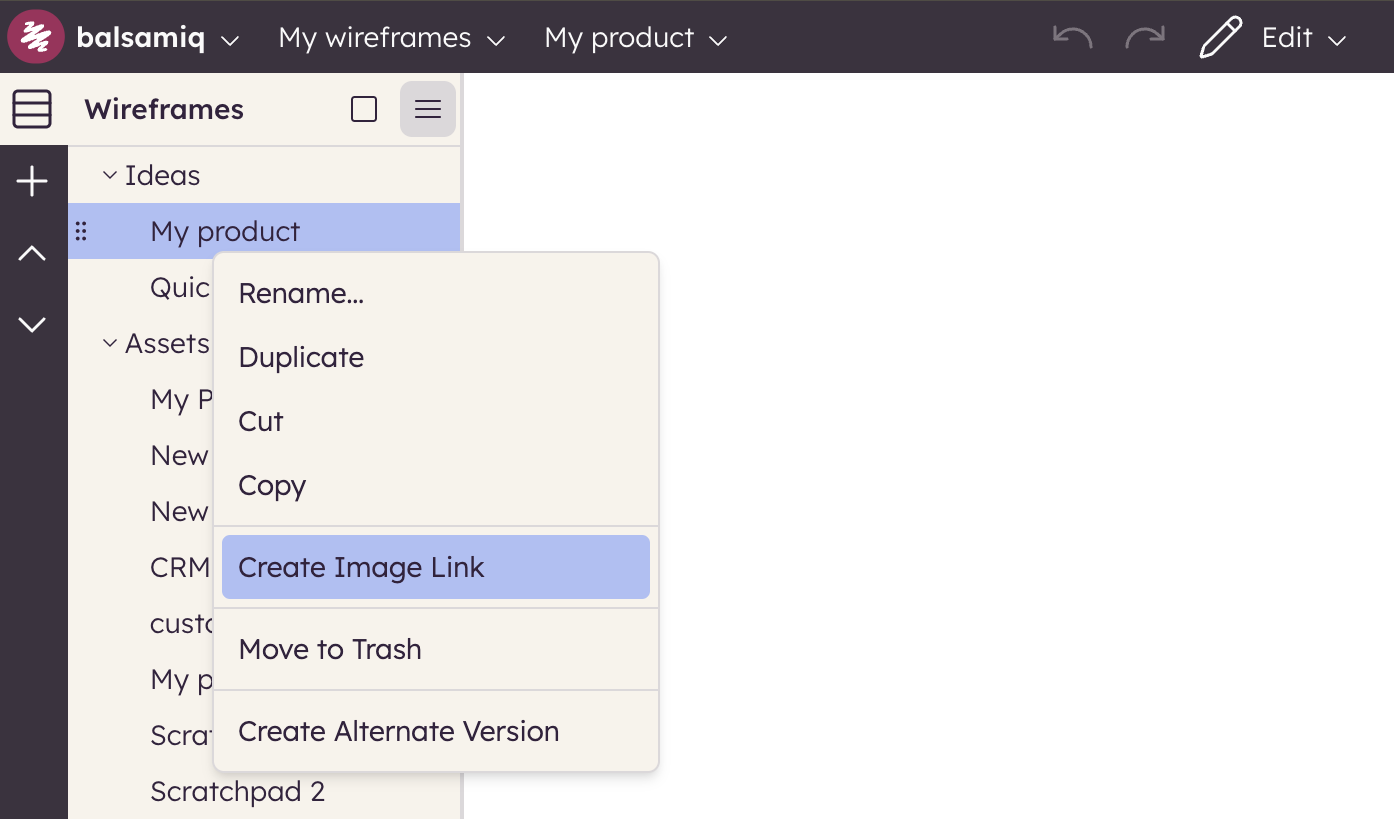
An Image Link will be created and copied to your computer's clipboard, allowing you to share it anywhere you want. What's more, the image will automatically update if you make changes to the board and close the editor.
If you need to copy the link again (or manually update the image), you can click on the board's link icon from your boards panel.
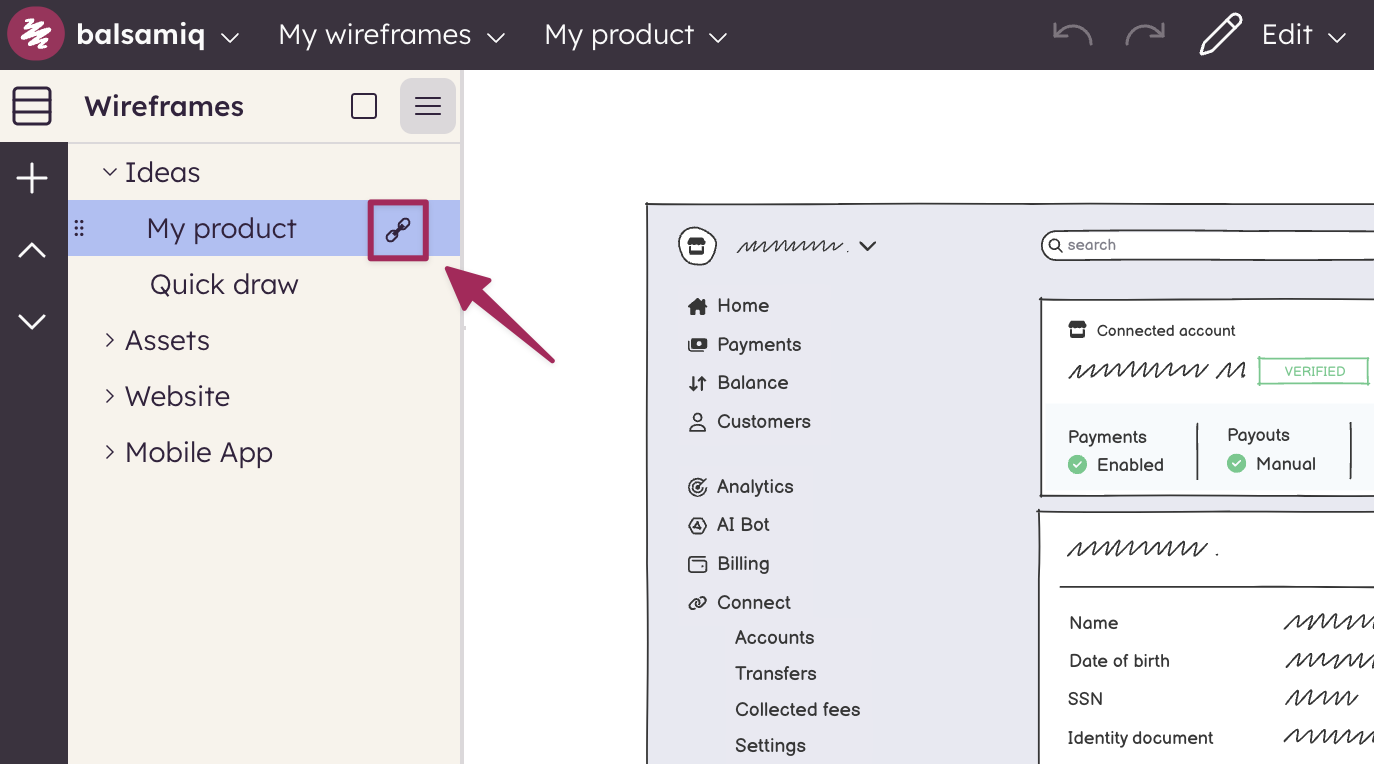
Once clicked, the link will again be copied to your computer's clipboard.
Deleting an image link
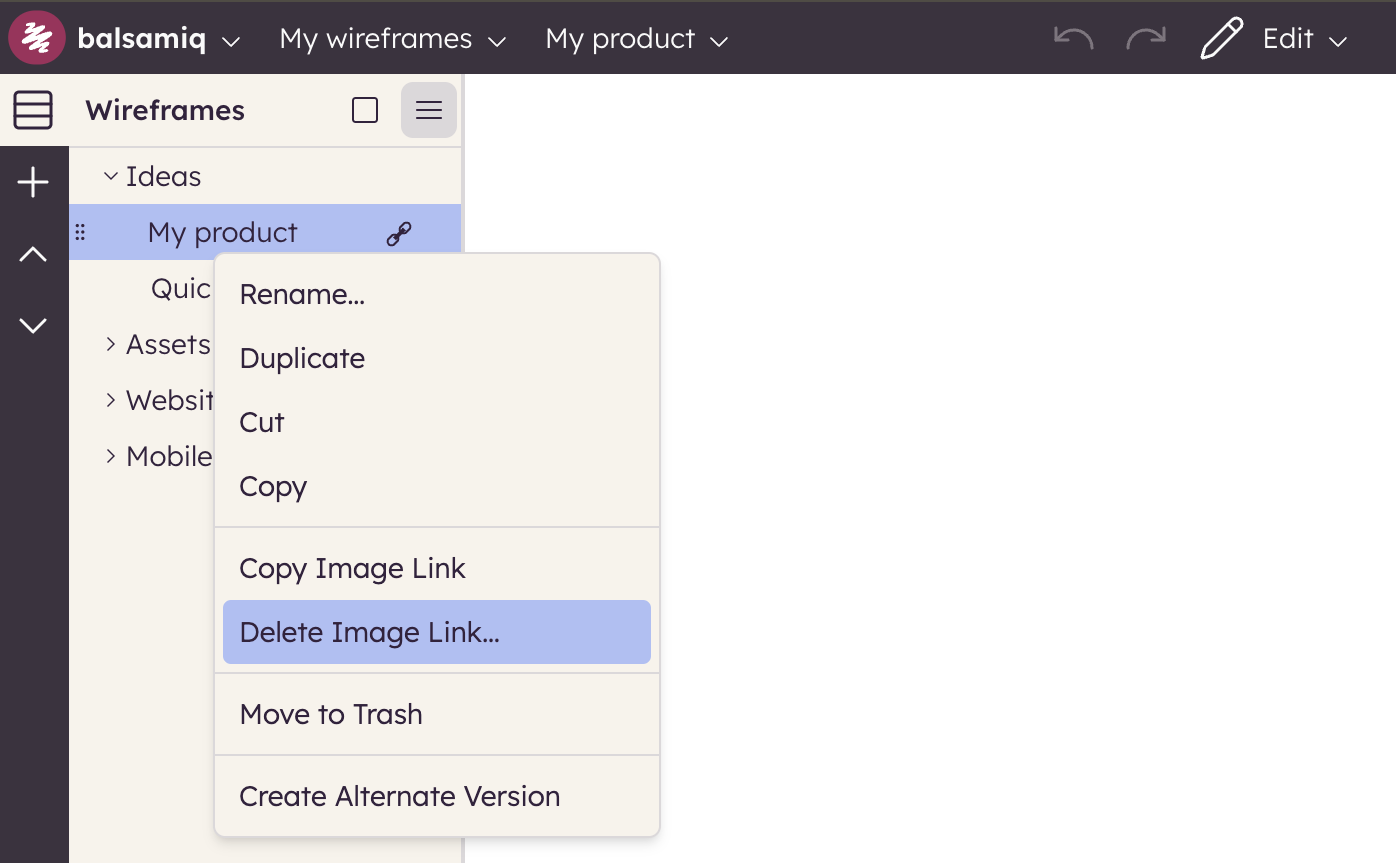
You can delete an Image Link at any time from the dialog available in the boards panel's context menu. Deleting it will generate an error message for anyone that tries to use/share the Image Link.
Note: Creating Image Links will skip the Balsamiq/Atlassian authentication. The created URL is hard to guess but you should know that if someone has the URL, they can have access to the image, the name of the board and the name of the related project.
Embedding your image link in Balsamiq for Confluence Cloud
In Balsamiq for Confluence Cloud, you can use the Image Link to embed a copy of the entire project on a separate Confluence page, allowing stakeholders to review and comment on it, as if they were using the Balsamiq Editor. To do this, add a new Balsamiq Macro to the page, and you'll be presented with an option to create a new project, or embed a project with an image link.
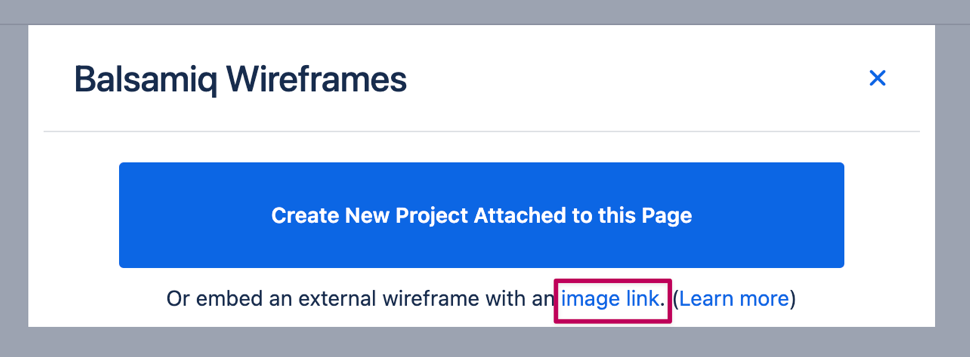
Clicking on Image Link (and then pasting the link) will place a copy of the project on that page. This version of the project will also update if you update the original board.
Embedding your image link in Balsamiq for Jira Cloud
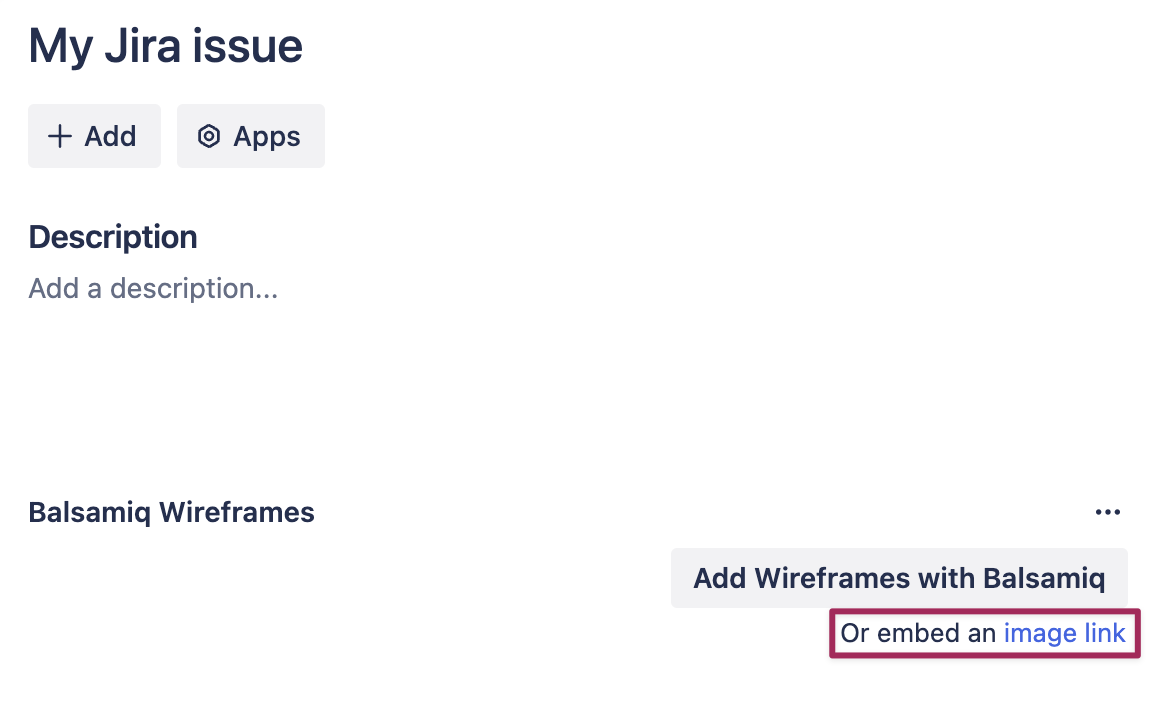
Once created, you can use the Image Link to embed a board to another Jira issue by using the dedicated option in the Balsamiq Panel.
Once the board is linked, you can review and comment it in full screen, edit the board or remove it from the Jira issue.
This Image Link will be automatically updated with any changes made to the original board.