Adjusting your project's centering
Full Screen Presentation Mode centers your entire project based on the board that is the tallest, and the board that is the widest. While this normally results in a presentation that is centered (and whose focus doesn't jump around), if you have a board that is a great deal larger than your other boards, it may result in your project being off center, or pushed to the top of the screen.
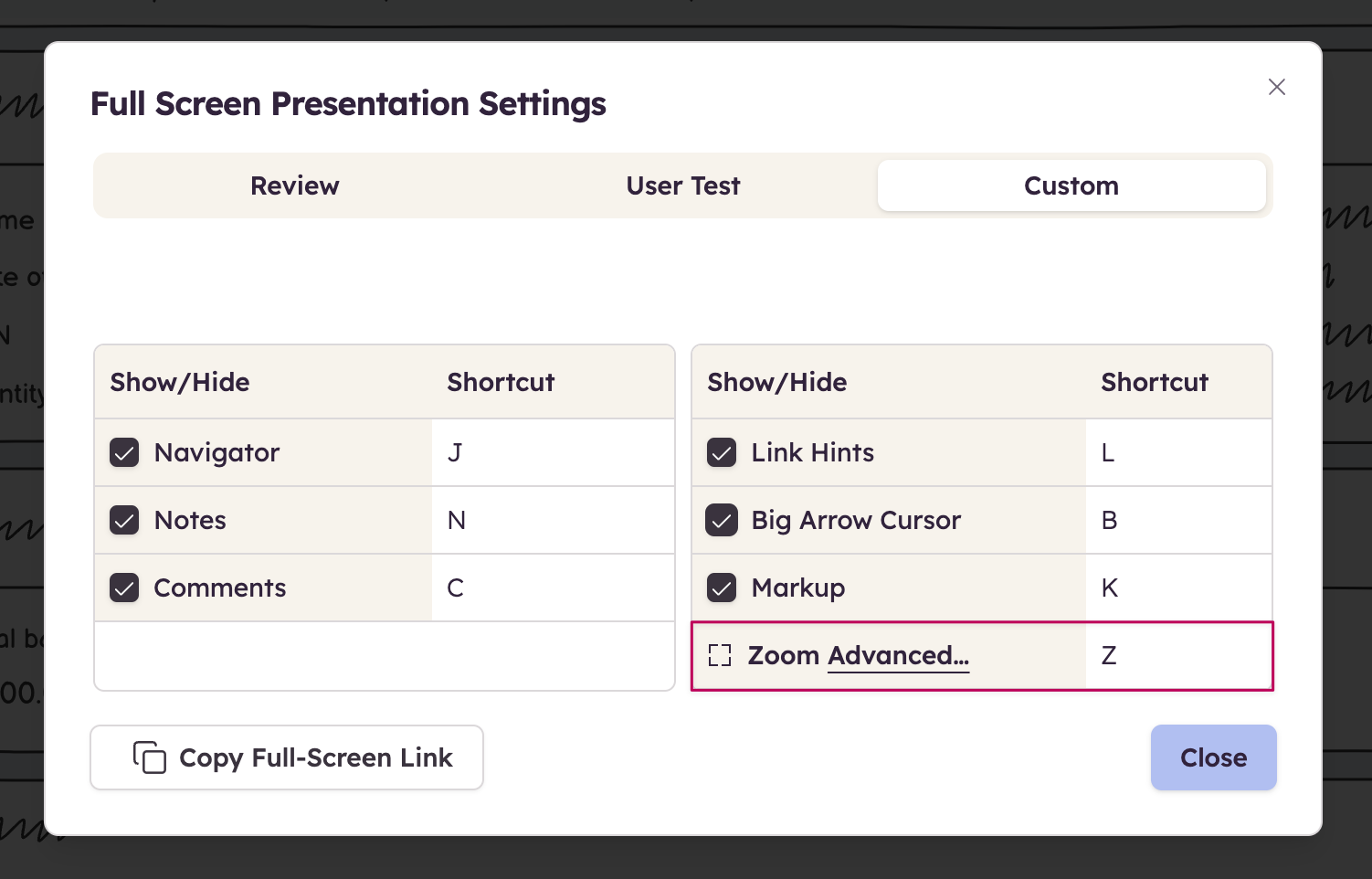
In the Settings Panel, click on the Advanced link next to the word Zoom.
Clicking that link will open a window that gives you an overview of the size of all the boards in your project. It will display the longest and widest boards in project, and the effective size they are making your project as a whole. The widest board will have its width in red, while the tallest board will have it's height in blue. This should give you a hint as to which board is causing your project to center incorrectly.
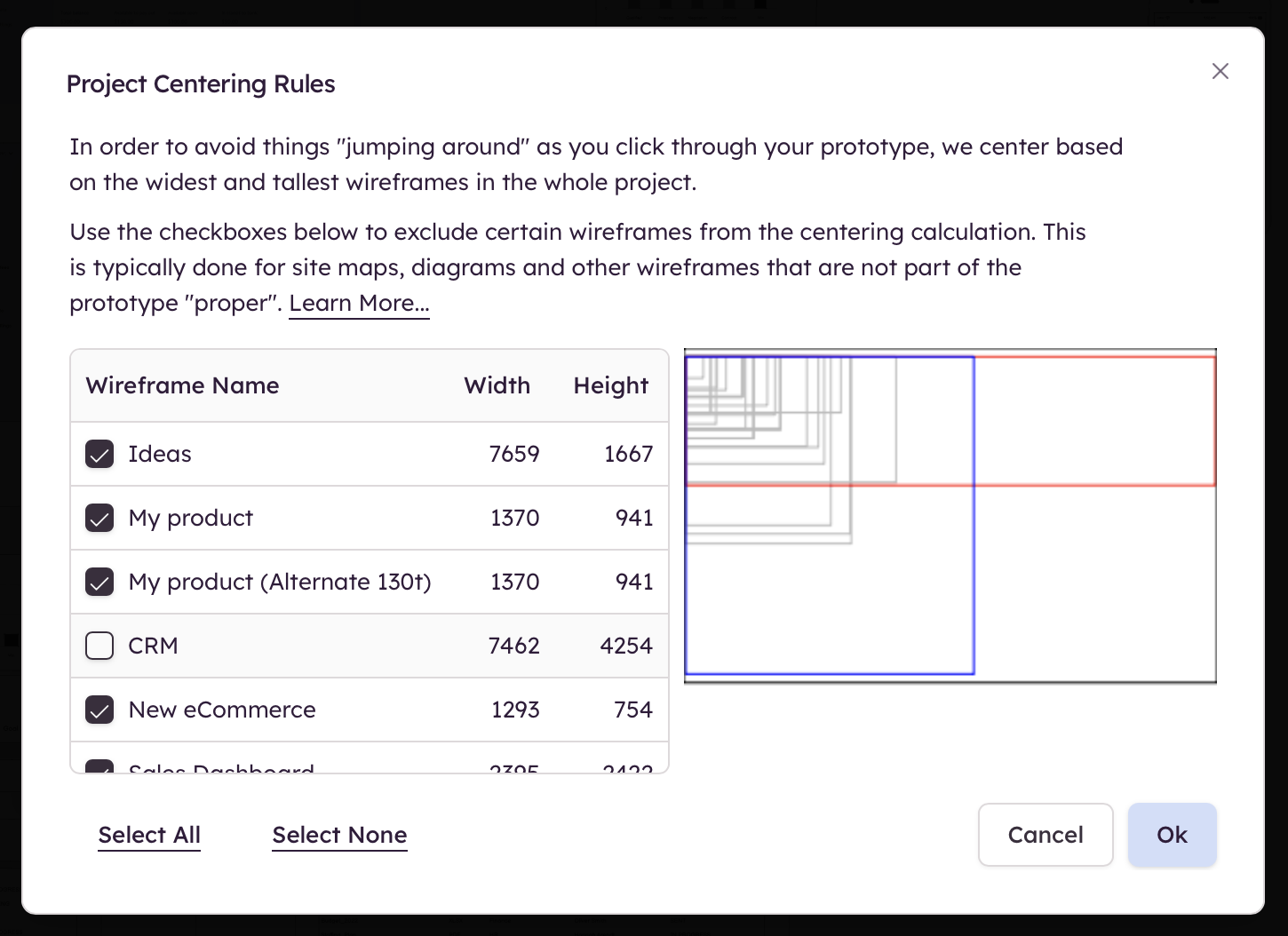
Clicking the checkbox next to the trouble board (or boards) will take it out of the centering calculation and will recalculate the new longest/widest boards